
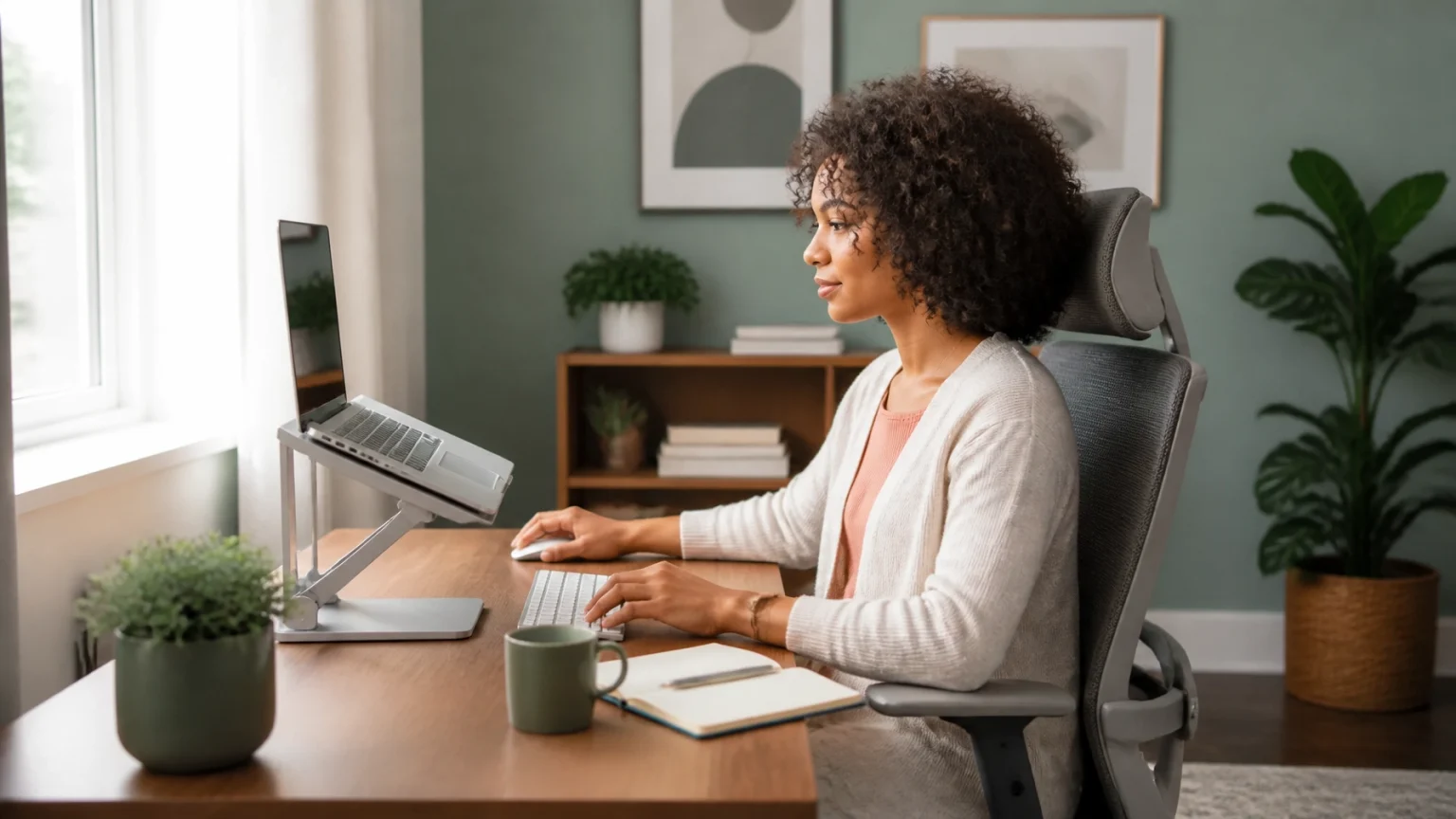
A well-designed home office can transform the way you work. The right setup supports focus, comfort, organization, and the confidence to handle demanding projects with precision.
But creating a productive workspace involves more than buying a desk and placing a laptop on it. Your chair, screen height, lighting, storage, technology, and daily routine all influence how effectively you work.
Whether you work remotely full time, run a small business, study online, or manage a flexible schedule, use this guide to build a workspace that fits your needs. And when installation, repairs, or technology setup require professional support, Jobsido helps you connect with handpicked, verified experts.
Start With The Right Space
Before choosing furniture or equipment, decide where your work zone will be.
A dedicated workspace makes it easier to separate professional responsibilities from home life. It does not need to be an entire room. A quiet corner, spare bedroom, dining area, or carefully organized section of a living room can work well.
Natural Resources Canada recommends using a dedicated workspace, following a consistent routine, scheduling breaks, and keeping essential work items within reach. The organization also advises against working regularly from a couch or bed.
Choose an area that offers:
- Reliable access to power outlets
- Stable internet connectivity
- Enough room for your desk and chair
- Minimal household traffic
- Natural or adjustable lighting
- Adequate space to move your legs freely
Keep the area visually calm. A clean, uncluttered environment reduces distractions and makes it easier to maintain an efficient workflow.

Build Your Setup From The Chair Up
Your chair is one of the most important elements of a productive home office. An attractive desk cannot compensate for a chair that leaves you uncomfortable after an hour.
Look for a chair with adjustable seat height, lumbar support, a supportive backrest, and a seat depth that allows you to sit comfortably without pressure behind your knees.
Use these adjustments:
- Set The Seat Height: Place both feet flat on the floor or on a footrest. Your thighs should be approximately parallel to the floor.
- Support Your Lower Back: Adjust the backrest so it supports your lumbar area and mid-back. Avoid sitting at the edge of the seat.
- Relax Your Shoulders: Set the armrests so your elbows rest near a 90-degree angle without forcing your shoulders upward.
- Check Your Alignment: Keep your head above your shoulders and your shoulders above your hips. Avoid leaning your neck forward toward the screen.
- Leave Space Behind Your Knees: Maintain a small gap between the seat edge and the backs of your knees.
If your current chair is too low for the desk, raise the chair and add a footrest. If the desk is too high and cannot be adjusted, this simple change can help you maintain better alignment.
For additional guidance, review the Mayo Clinic’s office ergonomics recommendations.
Position Your Desk, Keyboard, And Mouse
Your desk should allow your elbows to remain close to your body while your forearms stay roughly parallel to the floor.
Place your keyboard directly in front of you. The centre of the keyboard should align with the centre of your body. Keep your wrists straight rather than bent upward or turned to either side.
Position your mouse close to the keyboard and at the same height. Reaching repeatedly across a large desk can create unnecessary shoulder and arm tension.
Follow these practical adjustments:
- Keep the keyboard flat or only slightly angled.
- Rest your forearms lightly on the desk or chair armrests.
- Avoid pressing your wrists against sharp desk edges.
- Keep frequently used items within easy reach.
- Use a compact keyboard or centred pointing device if your workspace is narrow.
- Adjust pointer speed so you do not need excessive wrist movement.
If you work primarily on a laptop, use a laptop stand or stable riser with an external keyboard and mouse. This allows you to raise the screen without forcing your arms into an uncomfortable position.
Set Up Your Monitor For Comfort
Monitor placement directly affects neck position, visual comfort, and concentration.
Place your screen approximately an arm’s length away. The top of the monitor should be at or slightly below eye level, allowing you to look slightly downward without bending your neck.
Align the monitor with your keyboard and the centre of your body. This prevents you from twisting your neck or torso throughout the day.
Use these screen guidelines:
- Keep the monitor about 20 to 30 inches from your eyes, adjusting for your vision and screen size.
- Place the screen perpendicular to windows whenever possible.
- Reduce glare by changing the angle of the monitor or using adjustable blinds.
- Increase text size instead of leaning closer to the screen.
- If using two monitors, centre the primary screen directly in front of you.
- Place a laptop on a stand when it is your main display.
Natural Resources Canada’s Ergonomic Tips For Working At Home guide also recommends keeping a laptop centrally aligned and using an external keyboard and mouse for longer work sessions.
Improve Lighting And Organization
Good lighting makes your workspace more comfortable and helps you stay alert. Use natural light where possible, but avoid placing your monitor directly in front of or behind a bright window.
A task lamp can provide focused illumination during darker hours. Place it behind or beside the monitor rather than directly behind your head. The goal is to reduce harsh contrast between the screen and the surrounding room.
Organize your desk around the work you actually do. Keep your computer, notebook, water, headphones, and other daily essentials nearby. Store rarely used supplies in drawers, shelves, or cabinets.
Also protect your legroom. Avoid filling the space beneath the desk with boxes, equipment, or storage bins. A clear area makes it easier to adjust your sitting position and stand regularly.
Add The Technology You Need
A productive workspace does not require the most expensive equipment. It requires technology that supports your workflow reliably.
Depending on your role, consider adding:
- A stable external monitor
- A laptop stand
- An external keyboard and mouse
- Noise-cancelling headphones
- A webcam and microphone
- A surge-protected power bar
- Cable-management clips or sleeves
- A backup drive or secure cloud storage
- A desk lamp with adjustable brightness
Choose equipment based on your actual requirements. A graphic designer may need a colour-accurate monitor, while a consultant may prioritize video-call quality. A student may benefit most from improved lighting and storage.
For technology troubleshooting, computer repair, website support, graphic design, and other digital needs, explore Jobsido’s IT Services. You can browse sellers, compare prices, review ratings, and check availability before scheduling.
Bring In A Professional For The Details
Some home office improvements are simple. Others require tools, technical knowledge, or careful installation.
A professional can help you:
- Install shelves or wall-mounted storage
- Secure a monitor arm
- Route cables safely
- Assemble an ergonomic desk
- Improve lighting placement
- Mount equipment securely
- Repair outlets or address electrical concerns
- Configure computers, printers, and home networks
- Build a more accessible workspace
Hiring the right expert can make the entire process a breeze. Rather than guessing which service provider is available, Jobsido lets you browse service professionals, compare profiles, review feedback, and request a suitable time.
For furniture assembly, minor installations, and practical workspace improvements, visit Jobsido’s Handyman Services. For electrical, structural, or specialized work, use the relevant Home Construction And Maintenance services, and confirm that the professional is appropriately qualified for the task.

Create A Routine That Supports Focus
A productive office is shaped by habits as much as by furniture.
Start and finish work at consistent times where possible. At the beginning of the day, identify your most important tasks. At the end, clear your desk, close unnecessary applications, and prepare a short list for tomorrow.
Schedule movement into your day. Stand, walk, stretch your shoulders, or look away from the screen at regular intervals. Even a carefully adjusted workstation can become uncomfortable when you remain in one position for too long.
Try this simple rhythm:
- Plan: Choose your top three priorities.
- Focus: Work in a dedicated block without unnecessary notifications.
- Move: Stand or walk briefly before beginning the next block.
- Reset: Tidy your workspace at the end of the day.
Vary your posture instead of trying to hold one “perfect” position continuously. Comfort comes from neutral alignment combined with regular movement.
Use This Quick Home Office Checklist
Before calling your workspace complete, check the following:
- Your feet rest flat on the floor or a footrest.
- Your lower back is supported.
- Your shoulders remain relaxed.
- Your elbows stay close to your body.
- Your wrists are straight while typing.
- Your mouse is close to the keyboard.
- Your monitor is at or slightly below eye level.
- Your screen is approximately an arm’s length away.
- Your lighting does not create screen glare.
- Your desk has sufficient legroom.
- Your cables are organized and safely routed.
- Your work area supports regular breaks and movement.

Create Your Perfect Fit With Jobsido
The best home office is not necessarily the largest or most expensive. It is the one tailored to your work, your space, and your everyday routines.
Start with the essentials: a supportive chair, a properly positioned screen, a stable desk, balanced lighting, and a distraction-conscious layout. Then refine the details with help from a professional when installation, technology, or repairs call for greater precision.
When you are ready, find a service professional on Jobsido. Search, compare verified experts, schedule at a convenient time, complete the task, and leave a review. With the right support, creating a comfortable and high-quality home office can be smooth, practical, and stress-free.